
Wacom Tablet – Fix Issues with Text Selection & Unexpected Page Scrolling in Browsers
Overview
This article explains how to resolve an issue you may encounter when using a Wacom tablet: difficulty selecting text in your browser or pages unintentionally scrolling.
In my case, I originally fixed this behavior during the initial setup, but it reappeared later—most likely after a driver update.
Conclusion
You can solve this issue by turning off the Use Windows Ink option in your tablet settings.
Details of the Issue
When operating a browser with a Wacom tablet, you may run into the following unexpected behaviors:
- To select text, you need to click & hold with the pen tip (you can’t just drag-select as you would with a mouse).
- While holding the pen tip and moving it up and down, the page scrolls instead of selecting.
- You can’t drag text, images, or links.
This typically occurs when using a Wacom tablet for the first time, or after a driver update.
How to Fix It
This is not a bug—it’s a settings issue.
By default, Wacom enables Windows Ink, a handwriting input feature introduced in Windows 10.
This setting can cause the unintended behaviors described above.
You can disable the Windows Ink option in either of the following apps:
- Wacom Tablet Properties
- Wacom Center
For reference, I confirmed this behavior with the latest driver for Wacom Intuos Pro at the time of writing.
Using Wacom Tablet Properties
- Open Wacom Tablet Properties
- Go to the Mapping menu
- Turn off the
Use Windows Inkoption
Using Wacom Center
- Open Wacom Center
- Go to the Pen menu
- Open the Click settings
- Open the Advanced settings
- Turn off the
Windows Inkoption

menu window of wacom tablet propertoes
Using Wacom Center
- Open Wacom Center
- Go to the Pen menu
- Open the Click settings
- Open the Advanced settings
- Turn off the
Windows Inkoption
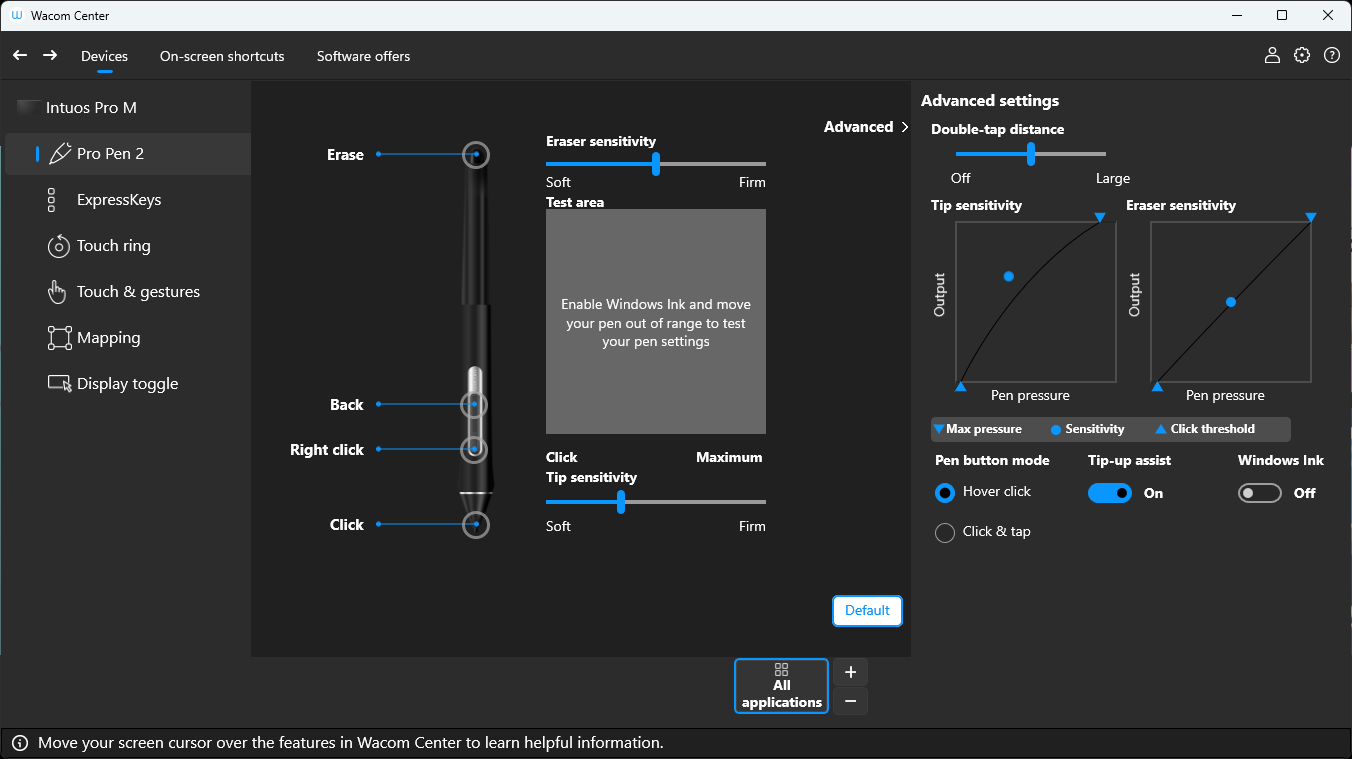
menu window of wacom center
What Exactly Is Windows Ink?
Honestly, I don’t fully understand it myself—so if you do, please share your knowledge!
From what I know, it’s a Microsoft feature for digital pen input on touch devices like the Surface. But apps that support Windows Ink (Windows Ink Workspace) can also be used with a mouse. Even with Windows Ink turned off on a Wacom tablet, I was still able to use those apps.
Do You Actually Need the Windows Ink Option?
Personally, I don’t think it’s necessary to keep it on. Still, I wonder if there are apps where having it enabled makes things more convenient.
If it wasn’t useful at all, it wouldn’t be enabled by default, right?
Since I’ve never used a Windows tablet or a Surface, I can’t say for sure. But I do know that when I left the option on and opened PowerPoint, the handwriting feature was enabled by default—which was annoying.
Windows Ink Whiteboard Is Very User-Friendly
Starting with Windows 10, Microsoft has provided an app called Microsoft Whiteboard.
There are many whiteboard apps out there, but this one is very easy to use.
And of course, it works smoothly with a Wacom tablet.
Although it takes a moment to launch, the app is responsive, supports collaboration, and pen input feels natural.
Recently, I’ve been using Microsoft Whiteboard, ClickUp Whiteboard, Miro, and Figma depending on the situation.
Related Pages You May Find Useful
- Wacom Intuos Pro | Wacom Tablet Website | Wacom
- Wacom | Basics: 17 – Windows Ink On/Off (YouTube)
- Using Pen with Windows Ink
- Microsoft Whiteboard – Free Download & Install on Windows | Microsoft Store
- Use Pen in Windows – Microsoft Support
- Figma: The Collaborative Interface Design Tool Would you like me to also simplify technical terms (e.g., explaining “Windows Ink” in plain
